When programming, you can apply Excel’s built-in layouts and styles for pivot tables.
Setting Pivot Table Layout
Pivot table layouts include compressed, outline, and tabular forms. The default is compressed form (as shown in Figure 7-2). Use the RowAxisLayout method of the PivotTable object to set the layout.
[Excel VBA] The sample file path is Samples\ch19\Excel VBA\ Setting the Layout of the Pivot Table.xlsm. Run the CreatePVT procedure to generate the pivot table, setting “Product” as the column field, “Category” and “Origin” as row fields, and “Amount” as the value field.
Run the Layout procedure to modify the layout to outline form.
Sub Layout()
    ' Omitted: get pivot table pvt
    ' ...
    ' Outline layout
    pvt.RowAxisLayout xlOutlineRow
End Sub
Running the procedure generates the pivot table with outline layout, as shown in Figure 7-8.
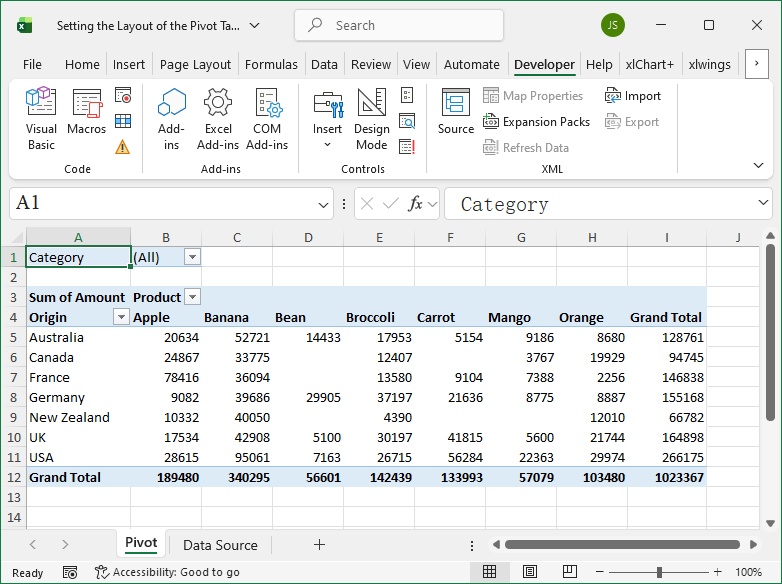
Figure 7-8
[Python] The Python script file path is Samples\ch19\Python\ Setting the Layout of the Pivot Table.py.
(Omitted code for brevity; refer to the Python file.)
Outline layout:
pvt.RowAxisLayout(xw.constants.LayoutRowType.xlOutlineRow)Running the script generates the pivot table with outline layout, as shown in Figure 7-8.
Setting Pivot Table Style
Styles are built-in appearance formats for Excel pivot tables. Use the TableStyle2 property of the PivotTable object to set the style.
[Excel VBA] The sample file path is Samples\ch19\Excel VBA\ Setting the Style of the Pivot Table.xlsm. Run the CreatePVT procedure to generate the pivot table.
Run the SetStyle procedure to set the pivot table style to the constant "PivotStyleLight10".
Sub SetStyle()
    ' Omitted: get pivot table pvt
    ' ...
    pvt.TableStyle2 = "PivotStyleLight10"
End Sub
Running the procedure generates the pivot table shown in Figure 7-9.
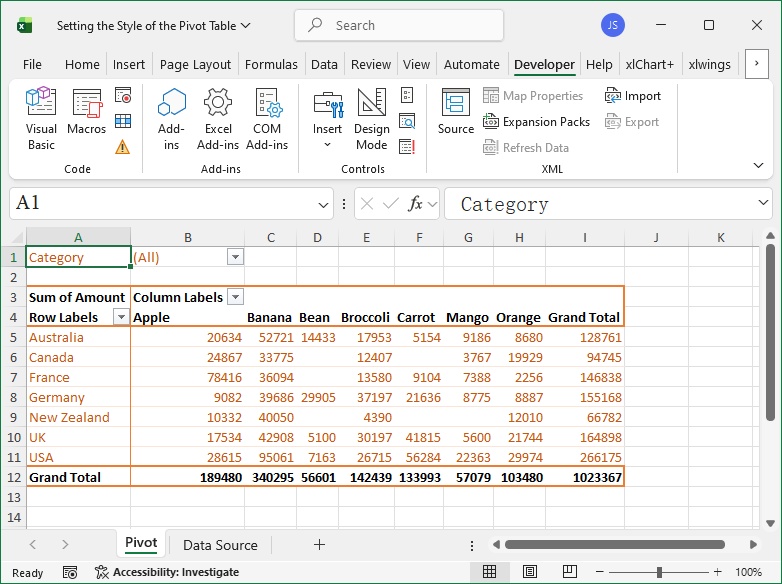
Figure 7-9
[Python] The Python script file path is Samples\ch19\Python\ Setting the Style of the Pivot Table.py.
(Omitted code for brevity; refer to the Python file.)
Set style:
pvt.TableStyle2 = 'PivotStyleLight10'Running the script generates the pivot table shown in Figure 7-9.